
To promote your upcoming event, you can easily send event reminders through the event module.
Note: By default, each event created will automatically send out two event reminder emails. The first one is sent one week before the event start and the second one is sent out 24 hours before the event start. This particular event reminder is just for those who have RSVP'd to the event.
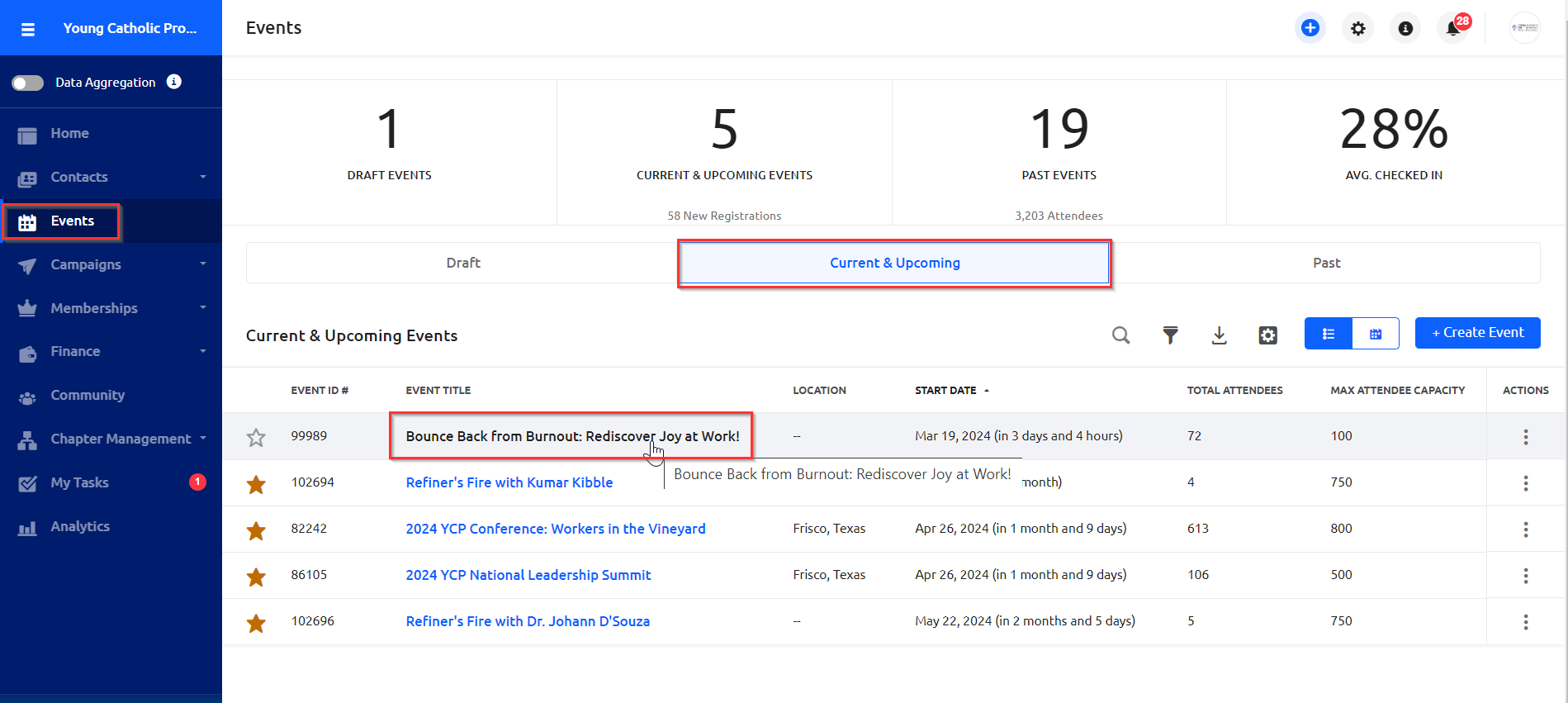
1) Navigate to the "Events" for your chapter, and click on the "Current & Upcoming Events" tab. Next, click on the event for which you want to send the event reminder to open its Event Dashboard.
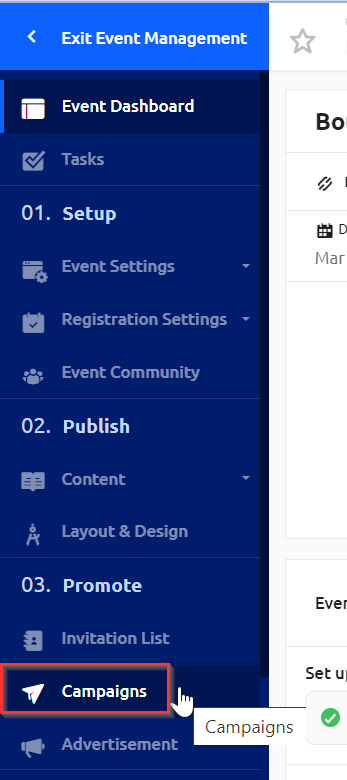
2) In the left hand pane, click on "Campaigns."
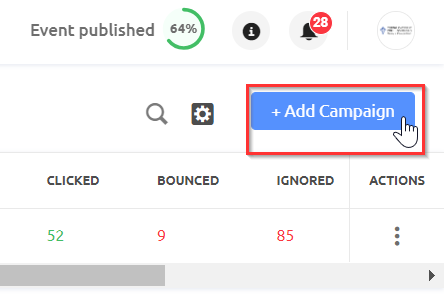
3) In the upper right hand corner, click on the "+Add Campaign" button.
4) This will open a new window that allows you to select either an event notification for a reminder of your event, or an event invitation. Make sure to enter an internal campaign name, select "Send Event Notification" and click "Create."

5) From there, follow the prompts to make edits to your event reminder campaign. When complete, either send or schedule the delivery for a later time.