
There are a number of reports, such as an income statement, balance sheet, or cash summary reports, that can be exported from Xero. Watch this video or follow the steps below to learn how to save or export a report for your own Chapter.
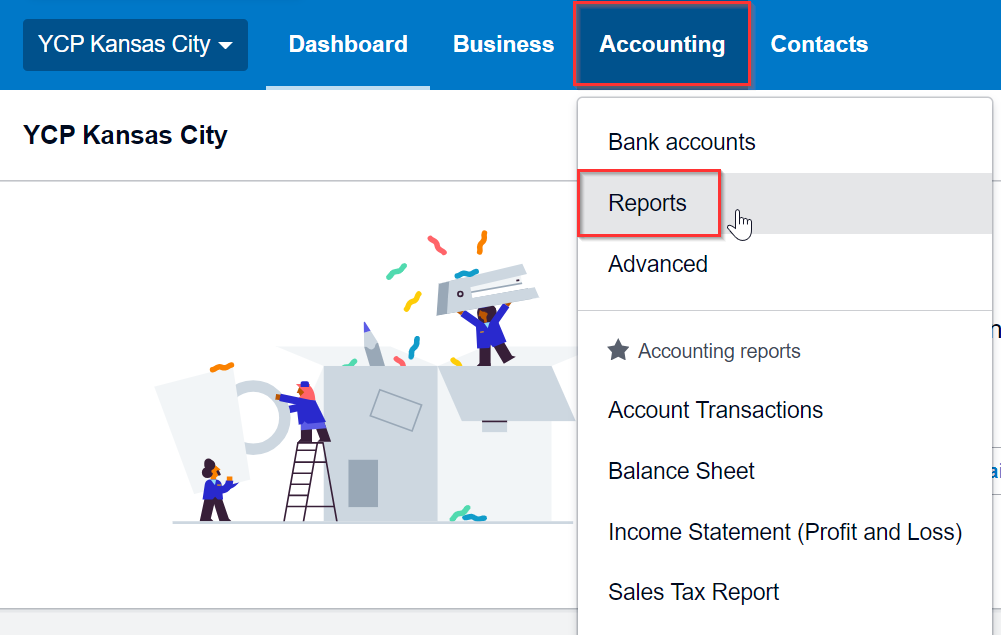
1) Once logged into Xero, click on "Accounting" and then "Reports" from the drop down menu.
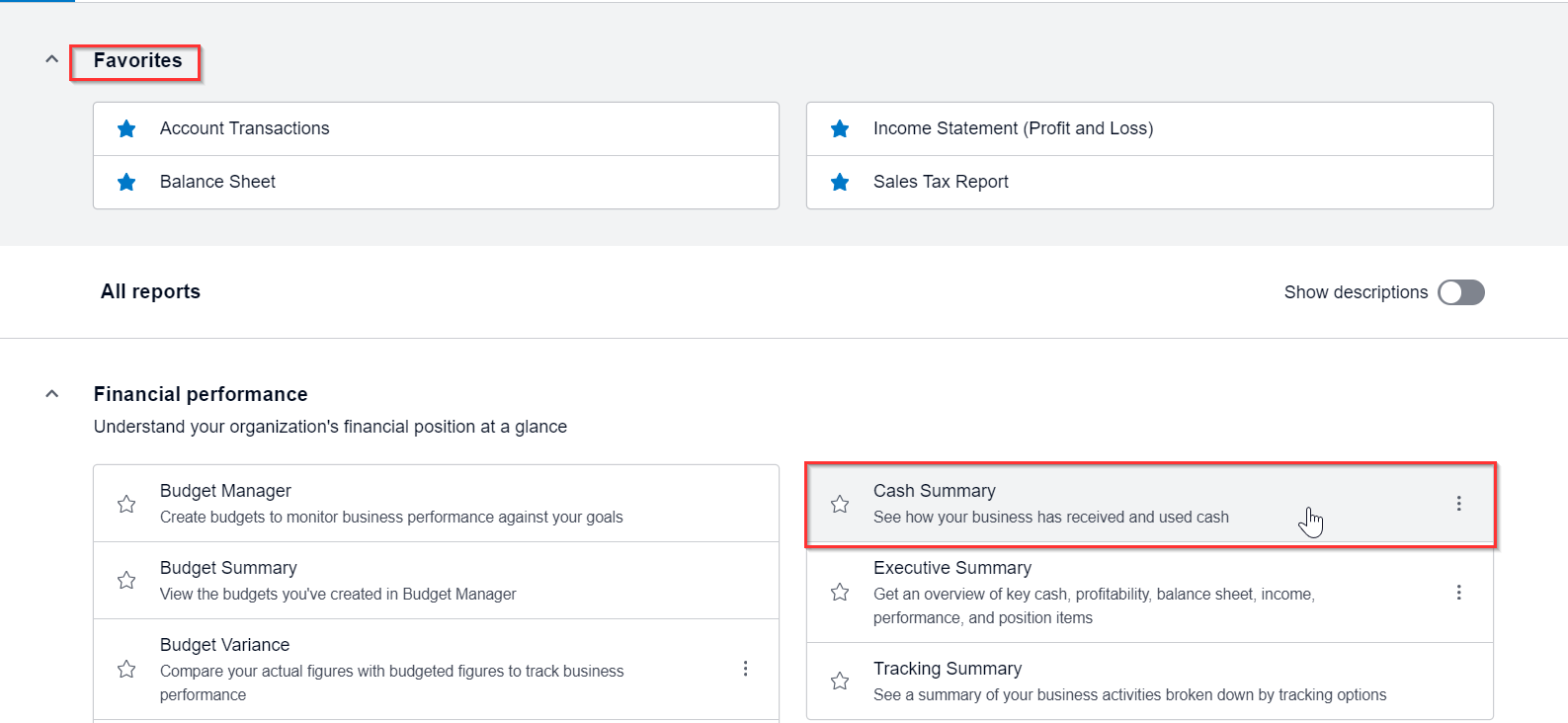
2) Select a report from the Favorites section or scroll through the list of other available reports. In this example, select "Cash Summary."
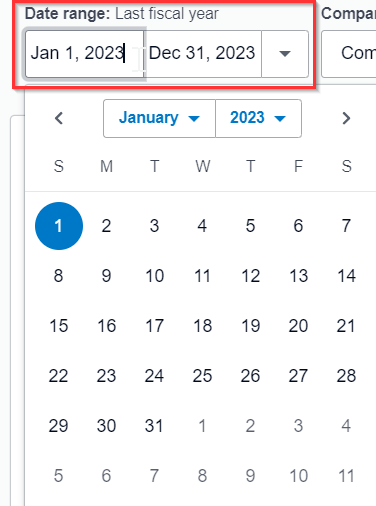
3) Use the settings at the top of the report to customize the data that will be populated.

4) Set the date range. Take note that it's helpful to change the year first, then the date.
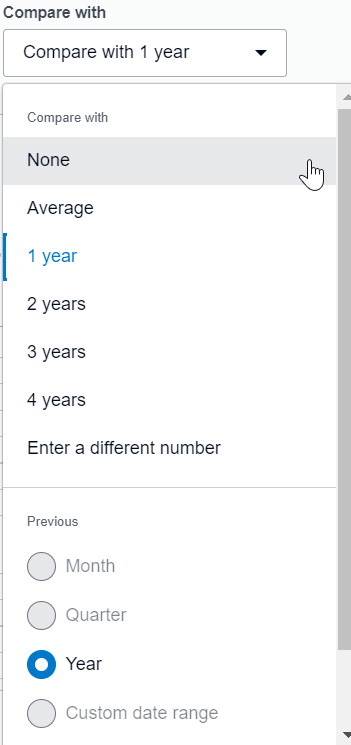
5) Then select an interval for which to compare your defined date range. Select "None" to exclude comparison data. Variance percentages will be visible if an interval is selected for comparison.
6) The report is viewable in Xero and can be saved as a draft, published or custom report for review in Xero later using the options at the bottom right hand corner of the window.
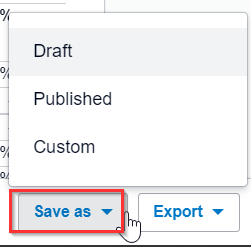
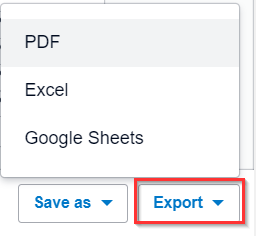
7) Alternatively, the report can be exported as a PDF, Excel or Google Sheets and shared with the Board or teammates.
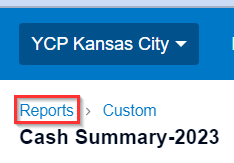
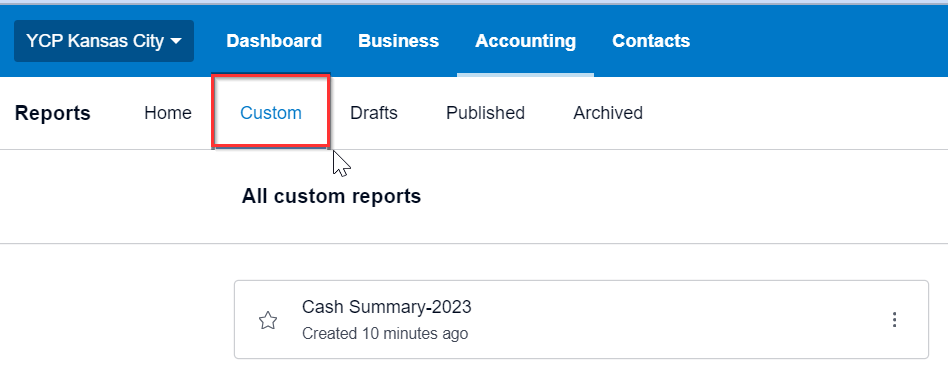
8) For any saved reports, navigate back to the report view in Xero by clicking "Reports" in the upper left hand corner. In the window that appears, you can find any custom reports that have been created and saved, as well as drafts, published and archived reports.
If you have any questions, submit a YCP Help Desk ticket or email help@youngcatholicprofessionals.org.