The sender email address, as well as the reply-to email address, for a campaign is found under a campaign's "Settings."
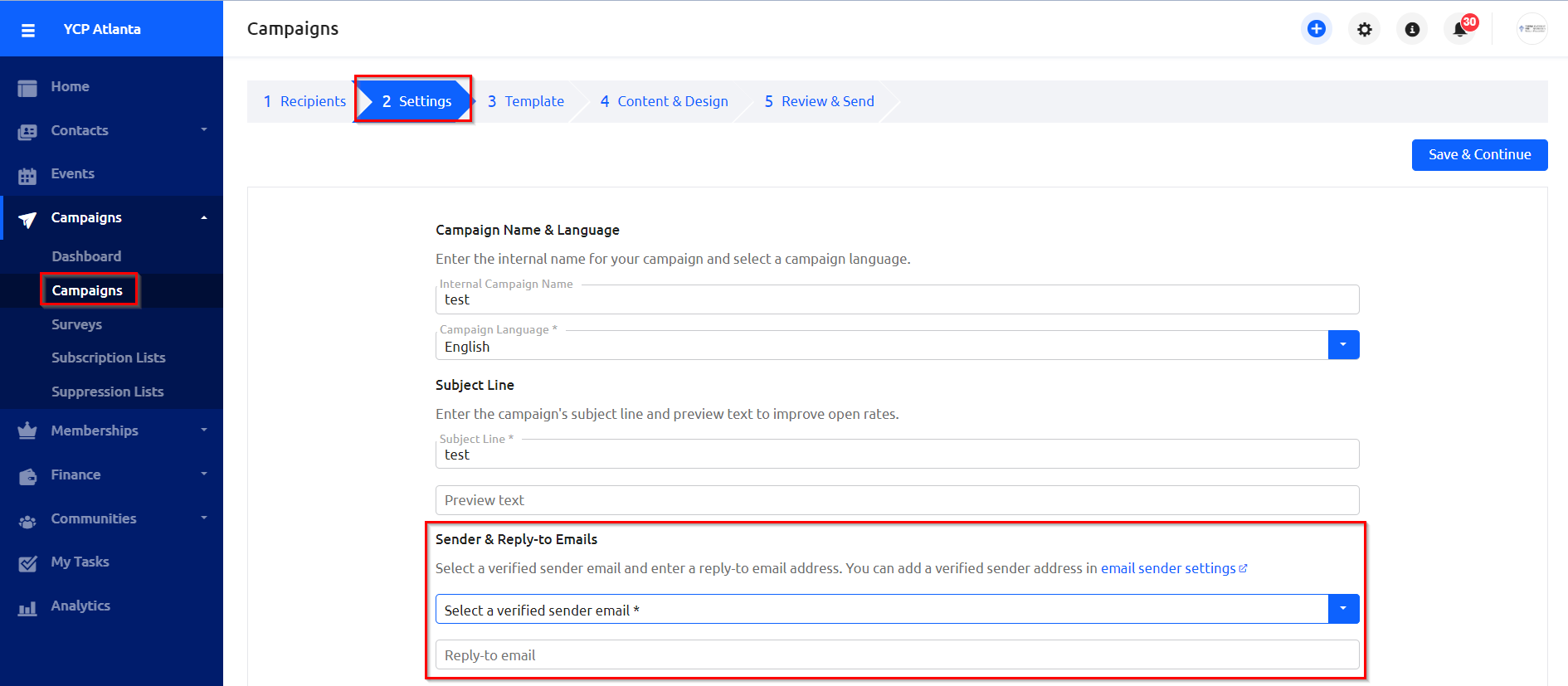
By default, the Chapter will only have info@ycp<chapter>.org as a verified sender. If another email is of interest, click on "email sender settings."

Then click "+Add Sender Email."

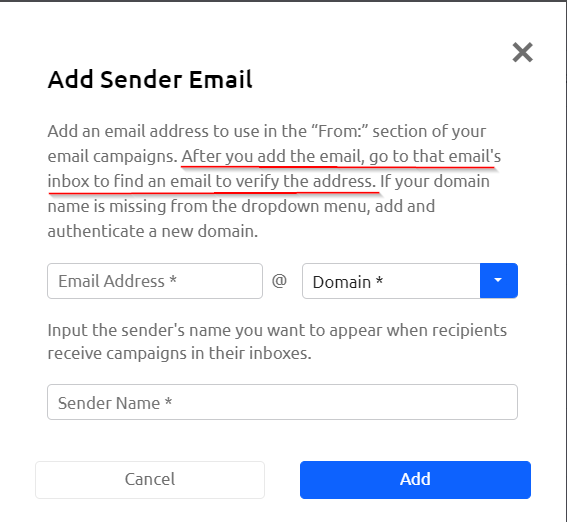
In the pop up window, enter in the email address you'd like to use for the sender email and the corresponding name that will show up alongside that email. In the example above, "YCP Atlanta" is the sender name and info@ycpatlanta.org is the email.
Take note that after you click "Add," you will need to go to the corresponding email inbox to find an email asking you to verify the address. Upon verifying the address, the new sender email address will be available in the drop down menu of your email campaign settings.