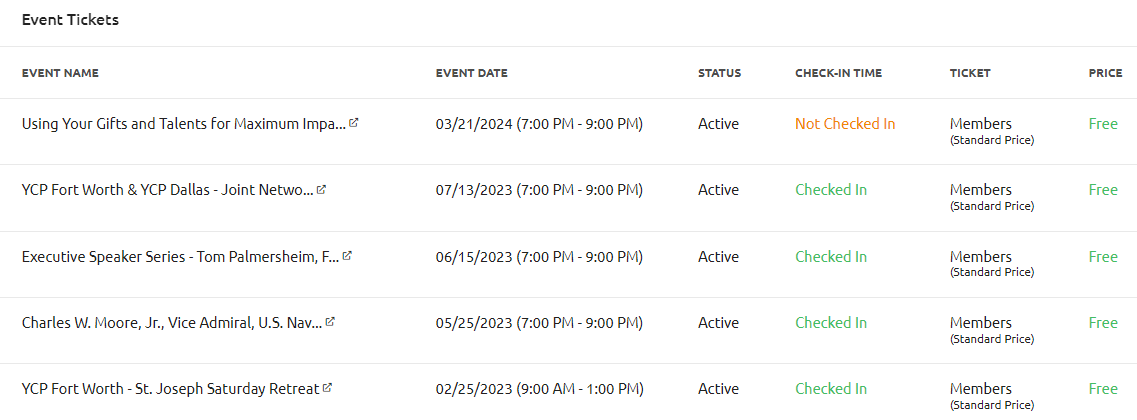
In your Event dashboard in Glue Up, you can see who is a member versus a non-member at your event. This article reviews the steps on how to do so. Additionally, we'll review how to see event history for a particular member or contact.
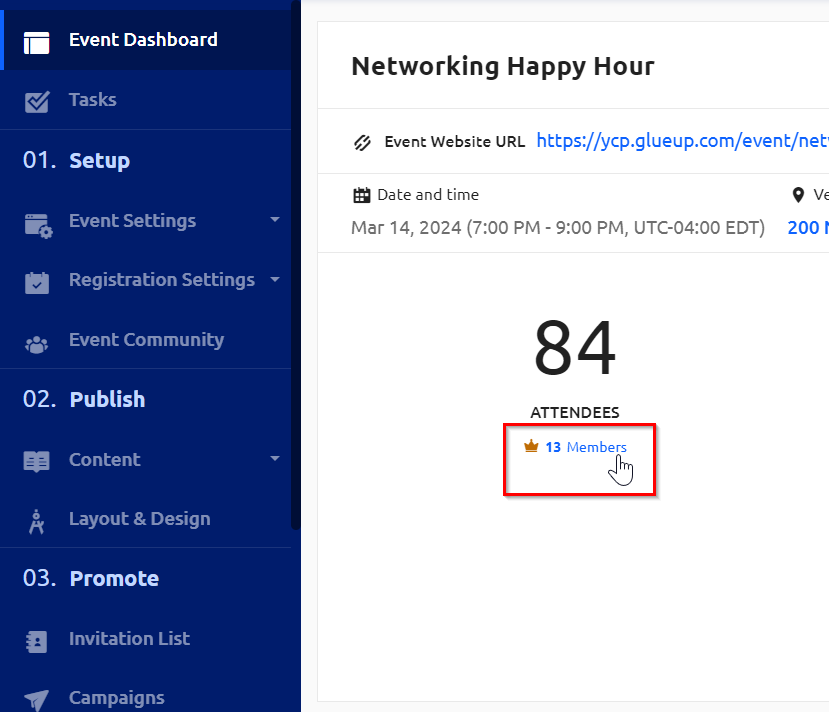
1) In your event dashboard, click on the "Members" callout under the number of attendees. Like the attendees number, the member count is just the number of members who RSVPed and not necessarily who attended.
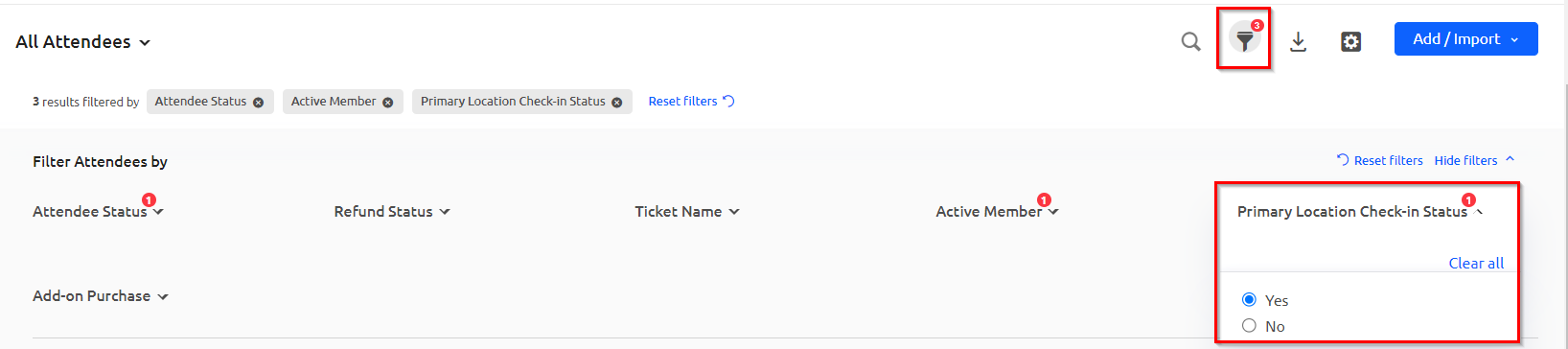
2) Then use the filter icon and toggle on "Yes" for "Primary Location Check-In Status." This will display the list of members who actually checked in at your event.
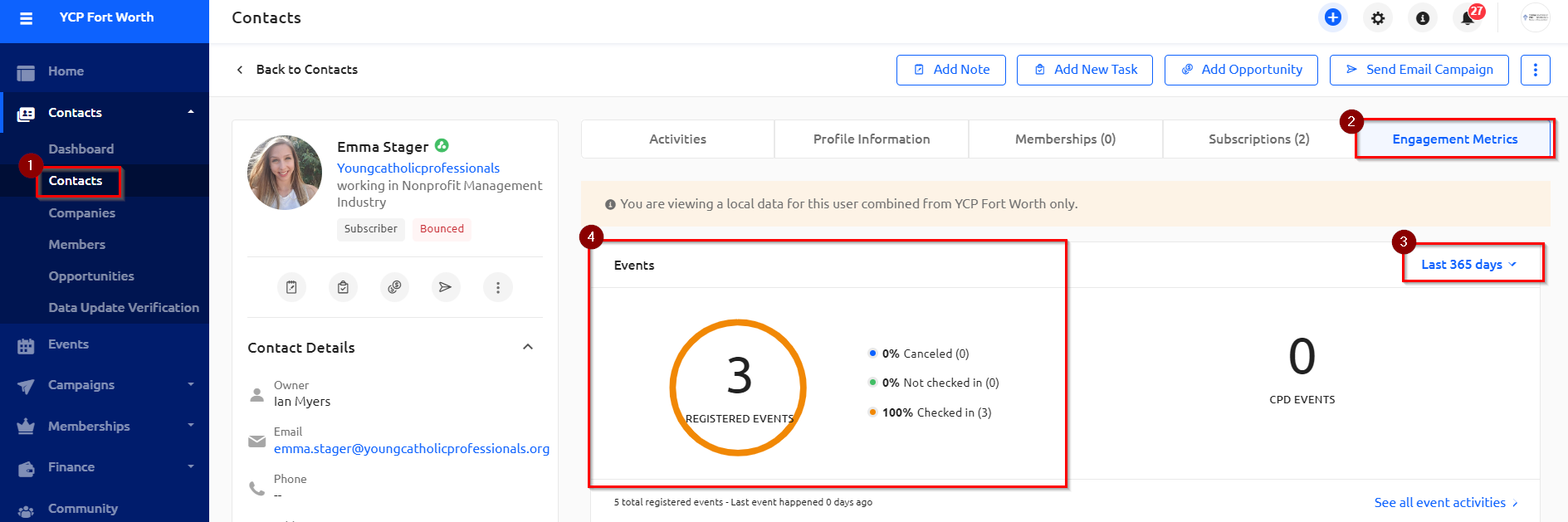
3) Additionally, you can look up historical event attendance for a member or contact under their profile (1). Under the "Engagement Metrics" tab (2) , change the date range (3) and view the number of events they have participated in (4).
4) Scroll down further on the page to view details on the specific events that the member/contact has attended.