
If you'd like to submit a ticket to the YCP Help Desk, you can simply email help@youngcatholicprofessionals.org to generate one automatically and correspondence will continue via email.
Additionally, you can submit a ticket on the YCP Help Desk portal when you are logged in (see this article on steps to login).
1) Once logged in, the "New Support Ticket" icon will be available. Click on it create a new ticket. 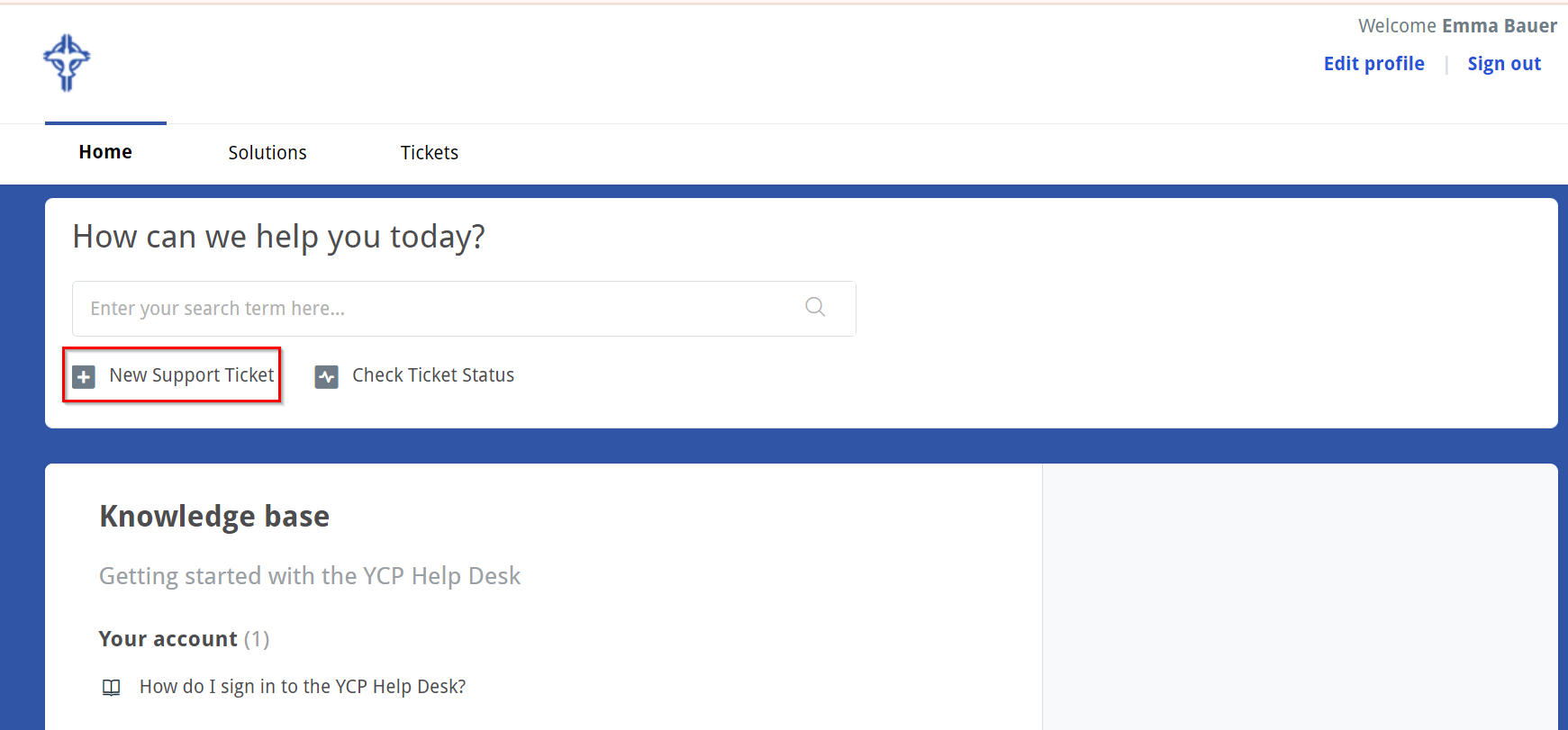
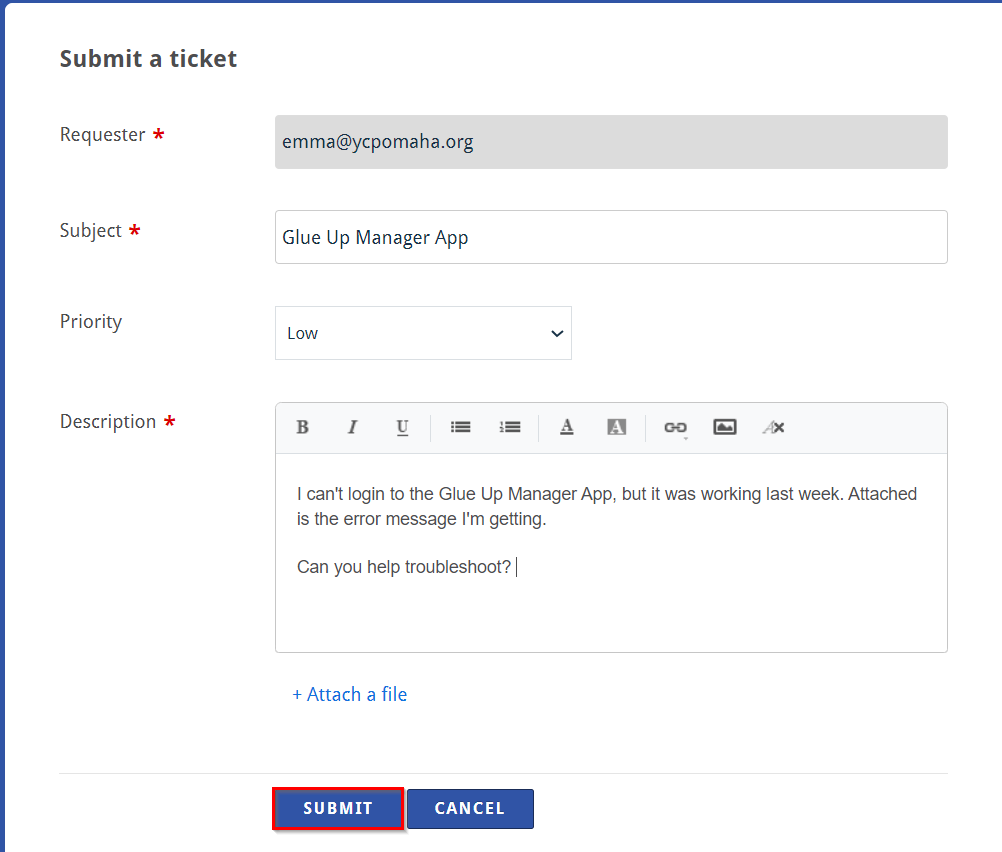
2) It will then prompt you to enter in more information for your ticket. Required fields are noted with a red asterisk.
- Requester: This will default to the email you are signed in with
- Subject: Here you can provide a quick summary of the ticket's question or concern
- Priority: This setting will default to low, but you can set the priority to medium, high or urgent to help us understand the importance or urgency in which we should address a ticket (please don't mark everything as urgent)
- Description: In this section, share as much as you can here in the description so we can get started with helping you more quickly. If there isn't enough information, we often will reach back out asking for more details or clarification before we can assist.
- Attach a file: Use this feature to add a screenshot of an error or any file that will help us understand your issue and best offer our support
Below is an example of this filled out. Once you have entered all the necessary details, click "Submit."
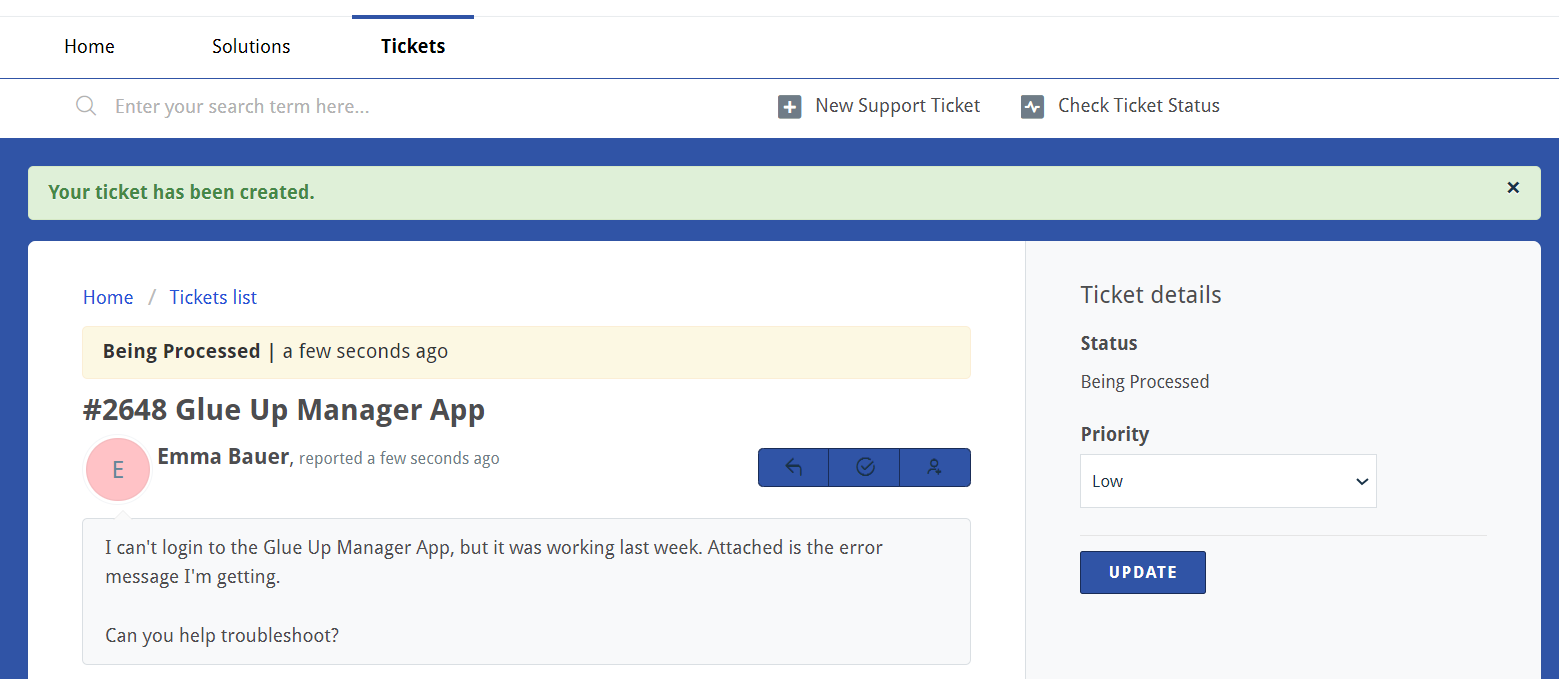
3) You will see a confirmation message that your ticket has been created successfully and you'll see initial information about it's processing.
4) Any correspondence between you and the YCP Help Desk team will be visible here. You will also see updates on the ticket status like who is helping you ("the agent").
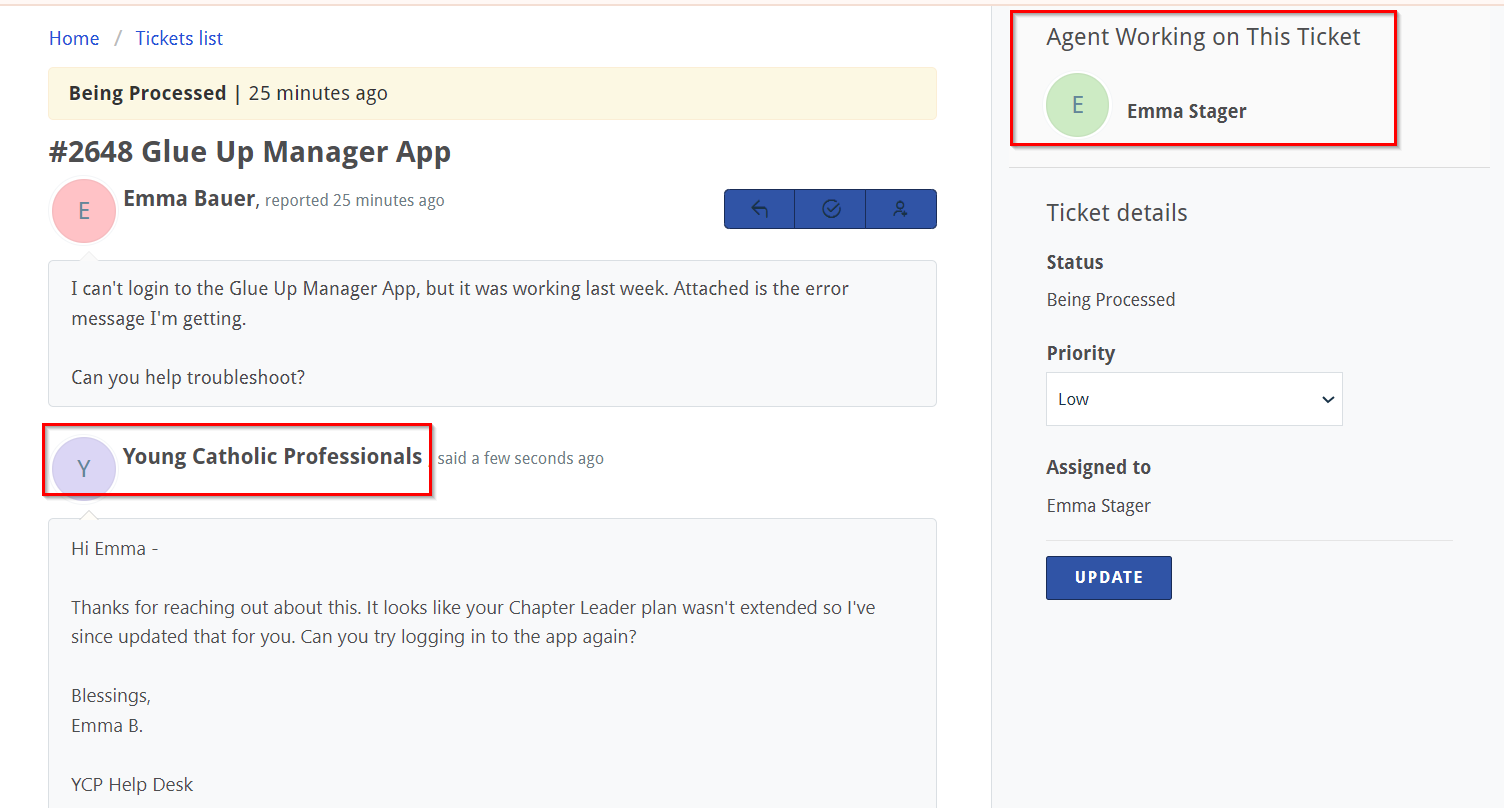
5) You will also see the correspondence in your Gmail inbox. You can reply in the YCP Help Desk portal or via email and both will stay linked to your ticket.
